How to edit text
To edit text on our templates, you have two options:
Quick Fill: Use our easy-to-use quick fill forms to add text, which will automatically replace the placeholder text on the template.
Direct: Click on any text area on the page to edit the text directly on the canvas.
Template used in this example: Double Border
Quick Fill: Use our easy-to-use quick fill forms to add text, which will automatically replace the placeholder text on the template.
Direct: Click on any text area on the page to edit the text directly on the canvas.
Template used in this example: Double Border

How to change font
To change the font, select the text you want to edit, then click the font family drop-down menu at the top of the editor. Choose your desired font from the list.
How to adjust text size
To adjust the text size, click on the icon highlighted in the screenshot below. The icon features a 'T' 'with an upward-pointing arrow. When you hover over the icon, it will display the label "Text Size."
You can then use the 'toggle bar' to increase or decrease the text size to suit your preference.
Please note: We generally recommend a minimum text size of 11pt, although this may vary depending on the font family used. If you have any questions or concerns about text size and readability when printed, please contact our team for further guidance.
You can then use the 'toggle bar' to increase or decrease the text size to suit your preference.
Please note: We generally recommend a minimum text size of 11pt, although this may vary depending on the font family used. If you have any questions or concerns about text size and readability when printed, please contact our team for further guidance.

How to change text colour
To change the text colour on a template, select the text area you want to modify and click the tear-drop icon at the top of the editor screen. A colour palette will appear on the left side of the screen. You can either choose from the pre-set colour swatches or click the '+' icon to create a custom colour.
Please note: When selecting a custom colour, be sure to click the save icon to add it to the My Colours section, so you can easily use it again.
Please note: When selecting a custom colour, be sure to click the save icon to add it to the My Colours section, so you can easily use it again.
How to add more text
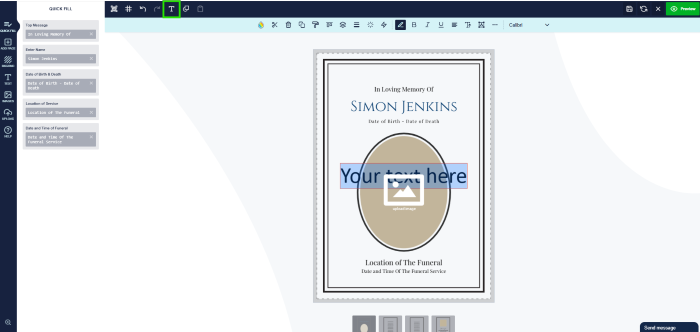
You can add additional text areas at any time by selecting the 'T' icon in the top-left corner of the editor. This will add a new text area to the template, and you can then apply the font styling as desired.
Alternatively, you can copy and paste an existing text block on the page. This ensures that the font styling remains consistent.
Alternatively, you can copy and paste an existing text block on the page. This ensures that the font styling remains consistent.
How to ensure text is centred on page
When altering text in anyway, it is always best to double check it is centred on the page itself. You can do this by selecting the 'align items' button, which will allow you to snap any item on the page to the position you wish.